How long does a router store history

3 min read
Published · Updated
In this article (6 sections)
Short answer: most home routers keep only a short, small log. It usually covers the last few hours to a few days, and it is often wiped when the router restarts. Routers with parental controls or a "web history" feature can keep a longer record, and your internet provider keeps its own records no matter what your router does.
Whether a router remembers anything at all depends on the model, the firmware and which logging options are switched on. That is why you will see answers ranging from "nothing" to "months".
What a router actually logs

A typical home router records events about the network, not a full diary of what you read online:
- Connected devices: the name, MAC address and IP address of every phone, laptop and TV that joined, and when.
- Bandwidth use: how much each device has downloaded and uploaded (only on routers with traffic statistics).
- Security and system events: failed admin logins, blocked connection attempts, restarts and firmware changes.
- Websites or domains visited: only if the router has DNS logging, parental controls or a "web history" feature turned on. Many routers have none of these.
- Settings: its own configuration, including your Wi-Fi name and DNS settings.
Because most websites use HTTPS, a router cannot see the exact page you opened or what you typed. At most it sees the domain name (for example example.com) and the address it connected to, not the full URL.
How long does a router keep its history?
There is no standard. These are the usual patterns:
- Basic system log: a small memory buffer. Old lines are overwritten when it fills up, which can be a few hours on a busy network or a few days on a quiet one. Most routers clear it on every restart.
- Parental control or web history: can be kept for days or weeks, and sometimes longer on routers that store it on a USB drive or in a cloud account.
- Business and ISP-managed routers: may send logs to a separate server, where they are kept for as long as the administrator decides.
Your internet provider is a separate case. It can see which addresses your connection talks to and keeps its own connection records. How long it keeps them depends on the provider and on the laws of your country, so check its privacy policy.
How to check your router's history
- Connect to your network and open a browser.
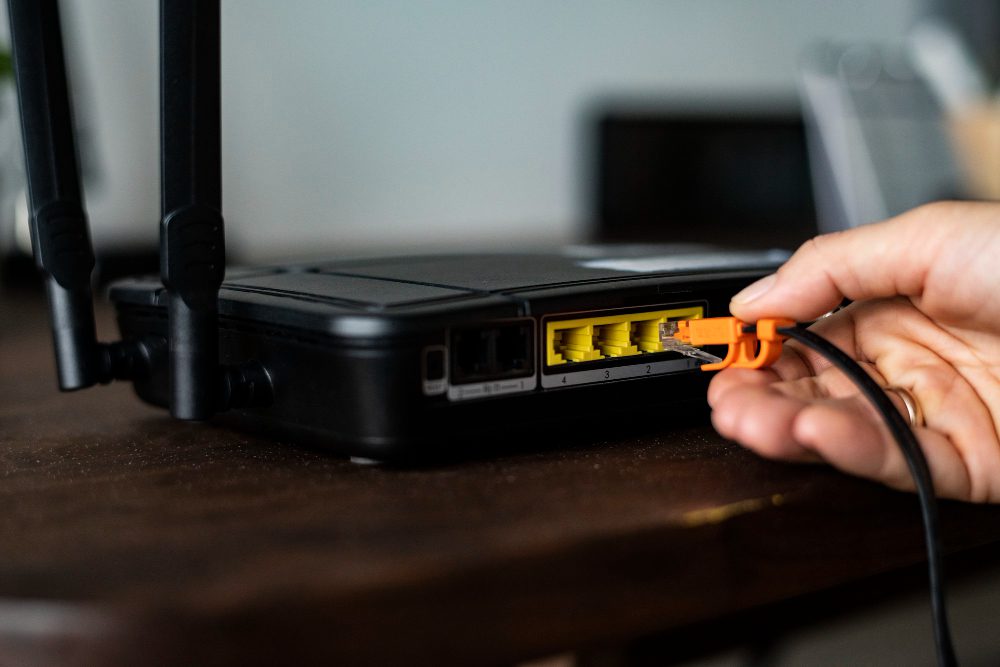
- Enter the router's address. Common ones are 192.168.1.1, 192.168.0.1 and 192.168.50.1. The right one, and the default login, is usually printed on the label on the router.
- Sign in with the admin password.
- Look for a menu called Logs, System Log, Traffic Monitor, Web History or Parental Controls. The name and location differ between brands such as Netgear, ASUS and TP-Link, and even between firmware versions.
If you cannot find a log section, your router probably does not keep one.
How to clear or limit it
- Clear the log: most routers have a Clear or Delete button next to the log.
- Restart the router: this empties the in-memory log on most models.
- Turn logging off: switch off web history, DNS logging or remote logging if you do not need them. Keep security logging on if you want to spot failed login attempts.
- Factory reset: erases everything, including your settings, so use it only if you are selling or giving away the router.
Protecting your privacy
- Change the default admin password and use WPA2 or WPA3 for Wi-Fi.
- Keep the router's firmware up to date.
- Turn off remote management unless you need it.
- Use a trusted VPN or encrypted DNS (DNS over HTTPS) if you do not want the router or your provider to see which domains you look up. The address you connect to still remains visible.
- If you share a router with other people, such as housemates, tell them what it logs.
FAQs about router history
Can router history be deleted?
Why does a router store history at all?
Can someone see my browsing through my router?
Does restarting a router clear its history?
Can my internet provider see what I search or watch?
Usually it can see which websites and services you connect to, such as youtube.com, but not the page you opened, what you typed into a search box or what you watched, because most sites use HTTPS. Providers can also see how much data you use and when. A VPN hides the sites from your provider, but then the VPN company can see them instead.
How do I check my router's history?
Open your router's admin page in a browser. The address and login are usually printed on a label on the router, and the address is often 192.168.0.1 or 192.168.1.1. Look for sections called Logs, System Log, Traffic, Connected Devices or Parental Controls. What you find depends on the model, and many routers show only recent events and connected devices.